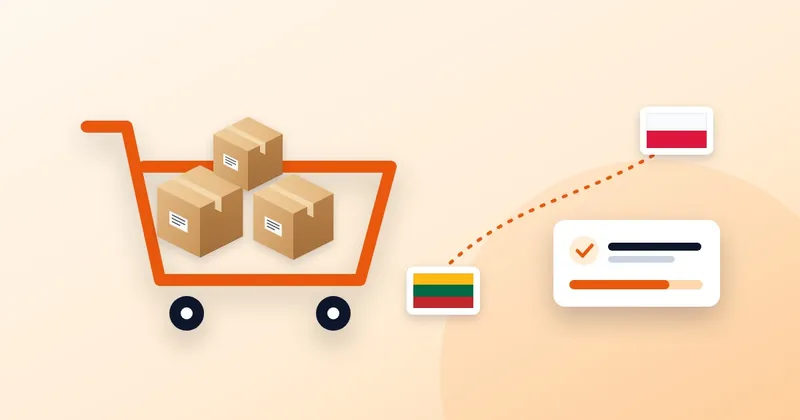
Copying addresses from Shopify into a courier website is slow and causes typos. Connecting the store once lets orders arrive in SendVersal on their own.
On this page
Before you start
- A Shopify account with owner or staff rights to install apps
- A SendVersal business account
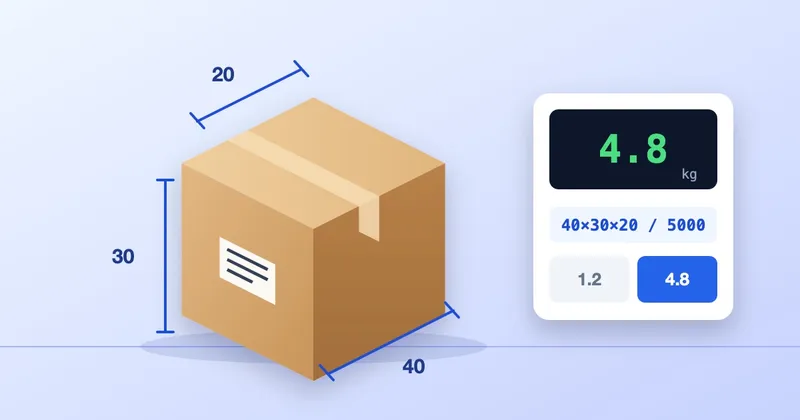
- Your default sender address and the box sizes you use most
Connect in three steps
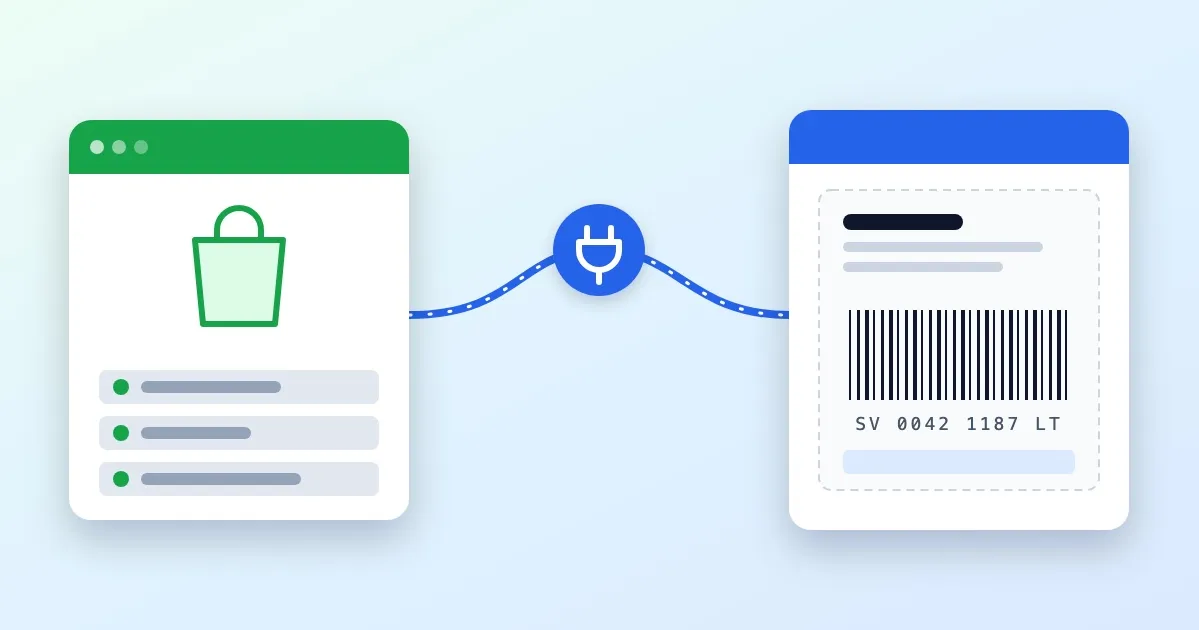
- In SendVersal, open Integrations and choose Shopify
- Approve access on the Shopify screen that opens
- Pick a default parcel size and sender address, then save
What syncs and where
- Orders, items and delivery addresses come into SendVersal
- Tracking numbers go back to Shopify
- Shopify sends the shipping confirmation email with tracking to your buyer
Printing labels in bulk
Select the day's orders, choose a courier per order or let SendVersal pick the cheapest, and print all labels as one PDF.
Connect your store for free
Our team sets up your account and helps connect your store. No contracts.
Troubleshooting
If orders stop syncing, reconnect the store from the Integrations page. Most issues come from a staff account losing app permissions in Shopify.
- Connecting Shopify once brings orders, items and addresses into SendVersal and sends tracking numbers back.
- Shopify then emails your buyer the shipping confirmation with tracking, and you print the day's labels as one PDF.
- Before you connect, have Shopify app-install rights, your default sender address and your usual box sizes ready.